

How to Install the MangaPage Manga Translator Browser Extension
Chrome Web Store, Microsoft Edge Add-ons, and Firefox Add-ons are all live. Install with one click from official stores or load our official release package in one minute.
Reading raw manga online gets annoying fast when you have to screenshot every page and drop it into a separate tab just to understand a bubble. Moving text cleaning and typesetting into a browser extension fixes that: you stay on the chapter page and read straight through.
Our MangaPage browser extension is now officially available on the Chrome Web Store, Microsoft Edge Add-ons Catalog, and Firefox Add-ons. If you use Chrome, Brave, Microsoft Edge, or Firefox, we recommend installing with one click directly from the official store. If you cannot access the stores or prefer local loading, you can download our official release packages below and load them locally in about a minute.
1. Browser Store Links & Offline Downloads
Choose the official store link or offline release package for your browser (around 250 KB):
- Google Chrome & Brave (Live · Recommended):
- Official Store: Chrome Web Store (One-Click Install) — Seamless auto-updates, zero developer mode required.
- Offline Package: Download Chrome / Chromium Release Package v0.1.3 (.zip) — Load via Developer mode below if you cannot access the Chrome Web Store, with 100% full features.
- Microsoft Edge (Live · Recommended):
- Official Store: Microsoft Edge Add-ons Catalog (One-Click Install) — Seamless auto-updates, zero developer mode required (or use the Chromium offline package above).
- Mozilla Firefox (Live · Recommended):
- Official Store: Firefox Add-ons (One-Click Install) — Seamless auto-updates, zero manual loading required.
- Offline Package: Download Firefox Release Package v0.1.3 (.zip) — Load temporarily via
about:debuggingif you cannot access Firefox Add-ons.
If you are on Chrome, Brave, Microsoft Edge, or Firefox, click the official store link above to install directly and skip the manual steps below. If you prefer local loading, follow the manual steps below:
2. Extract and keep in a permanent folder
- Open
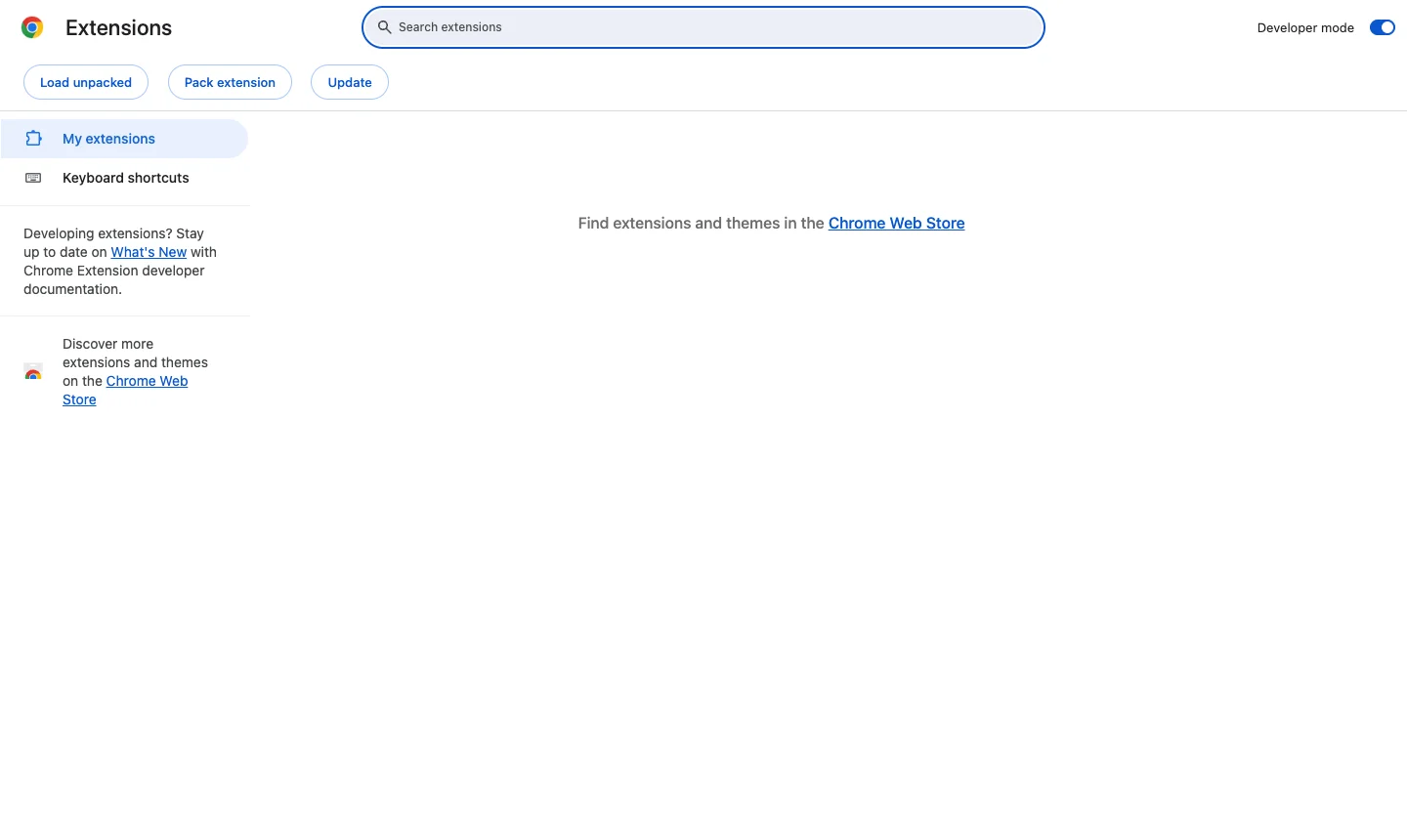
chrome://extensions/in Chrome (oredge://extensions/in Microsoft Edge). - Flip on Developer mode in the top-right corner.
3. Load the unpacked folder
Once Developer mode is on, click Load unpacked on the top left and pick the folder you extracted in Step 1. You should see the MangaPage 0.1.3 card appear with its toggle switched on.
4. Sign in and translate manga on reader pages
Click the puzzle-piece icon on your browser toolbar and pin MangaPage so it stays within reach. Open the popup, click the avatar in the top-right corner, and sign in with Google, GitHub, or email using the same credit balance as the main site.
Open any chapter on MangaDex, WEBTOON, MANGA Plus, Shonen Jump+, Pixiv Comic, or ComicWalker. A compact floating dock appears on the right edge of the page, and a blue progress ring spins around the logo while bubbles are being cleaned and typeset. When you visit a newer site from our cloud rule list, the toolbar icon lights up with a small blue ! badge—open the popup and authorize that site once to translate manga in place right away.